
Download ST Screen Recorder – Free, Secure Windows Screen Recorder with High-Quality Output
Looking for a lightweight, reliable, and free screen recorder for Windows? ST Screen Recorder delivers an intuitive and efficient solution for capturing your screen with high resolution and minimal lag. Whether you're a student, educator, content creator, or professional, this tool simplifies the process of recording your desktop activities.
With a single click, you can start recording your entire screen, a specific window, or a custom region. The default 24 FPS recording ensures smooth playback without sacrificing quality, while advanced compression options help keep file sizes manageable. Real-time preview lets you monitor your recording as it happens, and the MP4 output format guarantees compatibility across devices and platforms.
Customize your recordings with options like audio source selection, cursor visibility, frame rate adjustment, and bit rate control. All recordings are saved locally with ease, making it simple to review, edit, or share your content.
Key Features of ST Screen Recorder
- One-Click Recording – Start and stop screen captures instantly with a single button press, ideal for quick tutorials or impromptu recordings.
- High-Quality Output in MP4 Format – Record in high resolution using the efficient MPEG-4 codec, ensuring excellent video clarity and broad compatibility.
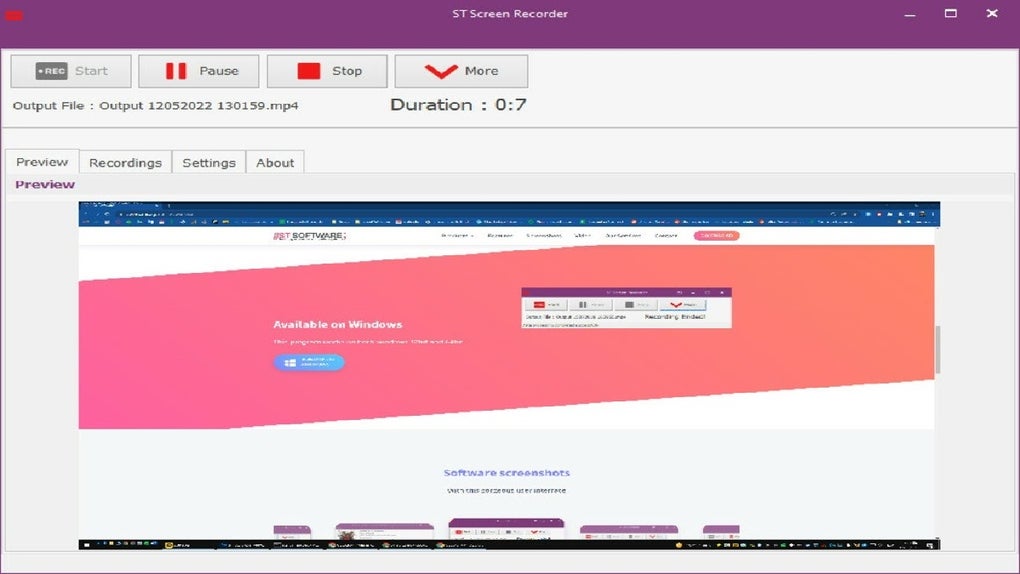
- Real-Time Preview – Monitor your recording live within the app interface, allowing you to verify content and adjust settings on the fly.
- Flexible Recording Areas – Choose to record your full screen, a specific window, or a custom-defined region for focused captures.
- Customizable Audio Settings – Select your preferred microphone or system audio for narration, and adjust audio levels for clear voiceovers.
- Advanced Video Controls – Adjust frame rate (FPS), bit rate, and resolution to balance quality and file size based on your needs.
- Cursor Visibility Options – Hide or highlight the cursor during recording to improve clarity in instructional videos.
- Lightweight & Fast Performance – Designed to run smoothly without consuming excessive system resources, even during long sessions.
- Automatic File Management – Recordings are saved with clear filenames and organized in your designated folder for easy access.
- Free to Download and Use – No watermarks, no trial limitations—ST Screen Recorder is completely free with no hidden costs.
How to Install and Use ST Screen Recorder on Windows
Getting started with ST Screen Recorder is quick and hassle-free. First, visit the official download page and click the free download button. The installer is lightweight and installs in seconds.
Once installed, launch the app from your Start menu or desktop shortcut. The interface is clean and user-friendly, featuring a large central recording button and clearly labeled options. To begin recording, simply click the big red button.
You can then choose your recording mode: full screen, specific window, or custom region. The real-time preview window allows you to confirm your selection before starting. For audio, navigate to the settings panel to pick your microphone or system audio source.
If you're recording a tutorial, consider turning off the cursor or highlighting it for better visibility. Once you’re ready, click the record button again to stop. The software automatically saves the file in MP4 format, and you can immediately preview it within the app.
You can also access the file folder directly from the interface. For future recordings, you can save your preferred settings as a preset to avoid reconfiguring every time. Regular updates ensure bug fixes, performance improvements, and new features, so always keep your software up to date for the best experience.
Compatibility and System Requirements
ST Screen Recorder is designed specifically for Windows operating systems, supporting Windows 7, 8, 8.1, and Windows 10 (both 32-bit and 64-bit versions). It is not currently available for Mac, Android, or iOS, so users on those platforms will need to explore alternative screen recording tools. The software runs efficiently on most modern PCs with minimal system requirements.
You’ll need at least 512 MB of RAM and a processor capable of handling video encoding tasks, though 1 GB or more is recommended for smooth performance. The application uses minimal CPU and GPU resources, making it suitable for older machines. It also works seamlessly with external monitors, multiple displays, and various screen resolutions.
Whether you're recording a 1080p video or a 4K stream, ST Screen Recorder adapts well to your setup. For users who prefer portable use, the app can be run from a USB drive after installation. This makes it ideal for use on shared or public computers.
The software does not require admin rights for basic operation, enhancing its accessibility. Since it’s a standalone tool, there’s no need to install additional codecs or dependencies. The file output is universally supported, meaning you can play or edit recordings in popular video editors like Adobe Premiere, DaVinci Resolve, or even Windows Movie Maker.
For those concerned about security, ST Screen Recorder is a trusted tool with no ads, no bundled malware, and no data collection—ensuring your recordings remain private and secure.
Pros and Cons of ST Screen Recorder
Pros
- Completely Free with No Watermarks – Unlike many screen recorders, ST Screen Recorder offers full functionality at no cost, without adding logos or restrictions.
- Simple, Intuitive Interface – The design is clean and straightforward, making it easy for beginners to start recording immediately.
- High-Quality MP4 Output – Videos are crisp and clear, with efficient compression that maintains quality while reducing file size.
- Real-Time Preview and Customization – See what you’re recording live and adjust settings like FPS, audio source, and cursor visibility on the fly.
- Lightweight and Fast – Consumes minimal system resources, allowing smooth recording even on older or low-end machines.
Cons
- No Mac or Mobile Support – Currently limited to Windows only, which may be a drawback for cross-platform users.
- Limited Advanced Editing Tools – While it records well, the app doesn’t include built-in video editing features like trimming or adding effects.
- Basic UI Design – The interface is functional but lacks modern visual polish compared to premium alternatives.
- No Cloud Sync or Sharing Features – Recordings must be manually shared or uploaded; no direct integration with cloud platforms.
Frequently Asked Questions (FAQ)
Final Verdict and Call to Action
If you're searching for a free, secure, and reliable screen recorder for Windows, ST Screen Recorder stands out as a top choice. Its one-click recording, high-quality MP4 output, and real-time preview make it perfect for educators, content creators, and professionals alike. While it lacks Mac and mobile support and doesn’t offer advanced editing, its core functionality is rock-solid and efficient.
The lightweight design ensures smooth performance even on older systems, and the complete absence of watermarks or trial limitations makes it a truly generous tool. Whether you're recording a Zoom meeting, creating a software tutorial, or capturing gameplay, ST Screen Recorder delivers consistent results with minimal effort. For users who value simplicity, privacy, and performance, this software is a must-have.
Download ST Screen Recorder today and start recording your screen with confidence—no strings attached, no compromises.







